This tutorial section deals with the modifications of a strategy for integrating the evaluatien shell. Depending on what you want to do and which tests you want to apply, there are several steps of integration. We'll use workshop6 as an example.
For adding cluster analysis, Montecarlo analysis, oversampling, various walk-forward optimization methods, and different training objectives, you only need to insert two lines to an existing stragey. Include eval.h at the begin of the script:
#include <eval.h>
... and eval.c at the end:
#include <eval.c>
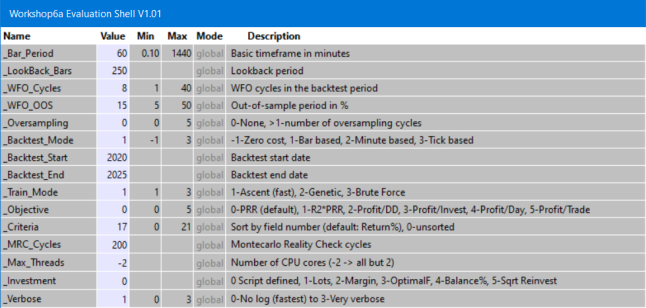
You can find a script with attached shell in Workshop6a. When you start it, the [Result] button will change to [Start], a new menu will be available under [Action], and the variables panel with the system section will pop up:
The settings have only effect when your script does not set those parameters itself. If it does, the script will override all settings in the panel, except for the _WFO_Cycles and _WFO_OOS values. They override the script, since they are used for the cluster analysis.
The default values of some variables can be set up in the strategy script by #define statements. Example:
#define _ASSETLIST	"AssetsFix"
#define _BAR_PERIOD     240
#define _LOOKBACK_BARS  4000
#define _WFO_CYCLES     16
#define _BACKTEST_START 20150101
#define _BACKTEST_END   20251231
#define _INVESTMENT 	4
The Action menu contains only a subset of the shell
functions. You can Reset the variables, run
Cluster Analysis and Montecarlo
analysis, and open the download page to Download
History.
The next step of evalution is letting the shell control your script variables. This allows you to experiment with many different parameter settings and optimization ranges, and testing them all in an automated process. Any such variant is a 'job'. As a side benefit, putting script variables in a panel also allows you to observe their bar-to-bar behavior with the Visual Debugger.
Instead of eval.h, now include evars.h at the begin of the script:
#include <evars.h>
Below the #include statement, put all relevant script variables that you want to observe, optimize, or experiment with in a list. Add comments and put an END_OF_VARS statement at the end of the list. Example (from Workshop6b):
var CNTR_BPPeriod; //= 30, 20..40, 5; Bandpass period in bars
var CNTR_BPWidth; //= 0.5, 0.2..1; Bandpass width
var CNTR_FisherPeriod; //=500, 300..700; Fisher transform period
var CNTR_Threshold; //= 1,0.5..1.5,0.1; Bandpass threshold
var CNTR_Fisher; //= 500,300..500; Time frame of Fisher transform
var CNTR_TrailDist; //=4, 0..10; Distance factor for trailing
var TRND_Mode; //= 0, 0..1; 0 - Lowpass, 1 - Butterworth filter
var TRND_Detect; //= 0, 0..1; 0 - MMI, 1 - Hurst
var TRND_LPPeriod; //= 300,100..700,50; Lowpass/Butterworth period in bars
var TRND_MMIPeriod; //= 300,100..500; MMI/Hurst Filter time period
var StopDist; //= 10,5..30,5; Stop distance in ATR units
var ATRPeriod; //=100, 30..150; ATR period for stop/trail distances
END_OF_VARS
This encapsulates the variables in a C struct named V. Thus, in the script the variables are accessed with a preceding V., for instance V.ATRPeriod. They all must be of type var. It you need an integer variable, as in a switch/case statement, use an (int) typecast. Replace all your optimize calls with _optimize and pass the variable as sole parameter. Example:
Stop = _optimize(V.StopDist) * ATR(V.ATRPeriod);
The added script variables appear at the end with a blue background. For illustrating the process, we have added two new variables to workshop 6 for selecting between two market regime detectors (Hurst and MMI) and two filters (Lowpass and Butterworth). The variable names and the comments matter. Observe the following rules:
The startup panel will now look like this (Workshop6b):
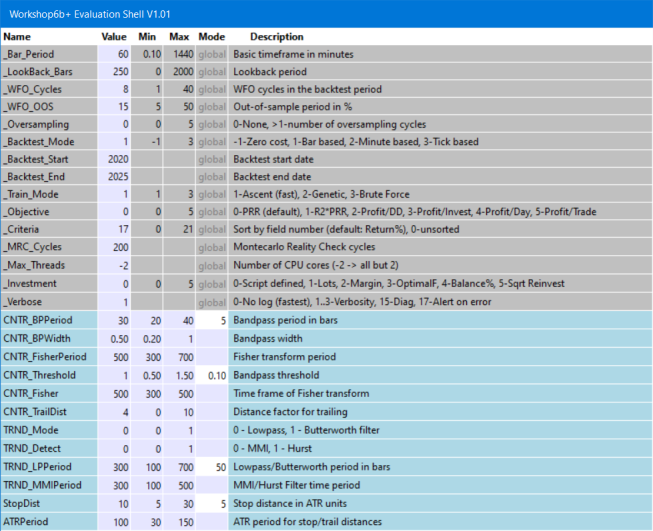
The Action menu allows now to save and load jobs, browse among jobs, and rearrange the summary report. Experiment with different variable settings and save them to the Jobs folder (or any other folder). Load all of them with Load Multiple Jobs. Four example jobs from workshop 6 are included, but you normally have a lot more jobs for thorougly testing a strategy,
When you click [Start] after loading one or
multiple jobs, they are all trained. At the end of the process, a bell will
ring, and the
summary report will open in the editor. If an entry of a particular job already existed
in the summary, it is updated with
the new results. The jobs with the best performances are sorted at the top of the
summary.
For finding out which asset, algo, and time frame combinations work best with which job, test it with any combination. Since this interferes with your asset/algo loops (if any) in the script, it has to be modified further:
First, put all assets, algos, and timeframes you want to test in #define _ASSETS, _ALGOS, _TIMEFRAMES statements:
 #define _ASSETS "EUR/USD","USD/JPY"
#define _ALGOS "TRND","CNTR"
#define _TIMEFRAMES 60,240  // in minutes
The syntax is the same as in a loop statement, so you can also use the Assets keyword to include all assets from the current asset list. Next, replace your main asset and algo loops with a single assetLoop() call. Assume your run function previously looked like this:
function rum()
{
  BarPeriod = 60;
  LookBack = 2000;

  while(asset(loop("EUR/USD","USD/JPY")))
  while(algo(loop("TRND","CNTR")))
  {
    if(strstr(Algo,"TRND")) {
      TimeFrame = 1;
      tradeTrend();
    } else if(strstr(Algo,"CNTR")) {
      TimeFrame = 4;
      tradeCounterTrend();
    }
  }
}
It now becomes this (see workshop6c.c):
 #define _ASSETS "EUR/USD","USD/JPY"
#define _ALGOS "TRND","CNTR"
#define _TIMEFRAMES 60,240

function run()
{
  BarPeriod = 60;
  LookBack = 2000;

  assetLoop();

  if(strstr(Algo,"TRND"))
    tradeTrend();
  else if(strstr(Algo,"CNTR"))
    tradeCounterTrend();
}
If your script has no asset/algo loops, replace your first asset() call with assetLoop(). Mind the Algo comparison with strstr. Using strcmp or '=' for algo selection would not work anymore, since algo names now get a number appended. If you start the system now, it assigns different colors to the variables since it recognizes from their name to which algo they belong.
If you now run the system without loading a job, or if you select only a single job , it will use the first asset, algo, and time frame from the definitions. If multiple jobs are loaded, they will be trained and tested with all their asset, algo, and time frame combinations.
The Action menu now got the final item to
Create Algos from Summary. All profitable and robust
jobs from that summary with a CA result of 75% or better are selected for the
final portfolio. They are automatically loaded at start.